7 years of good development in 5 minutes

First, here’s the idea of TDD

http://www.jamesshore.com/Blog/Red-Green-Refactor.html


Now here’s the concept of strict TDD, this example uses NUnit which is “A Good Thing”.

http://gojko.net/2009/02/27/thought-provoking-tdd-exercise-at-the-software-craftsmanship-conference/


Now you need something to try it out on, so here’s a kata

http://www.butunclebob.com/ArticleS.UncleBob.TheBowlingGameKata (you want to click on the word “Here” to get the slides)


So here’s an exercise,

1.       spend 20 minutes using the kata to write some code – literally set a timer. Don’t worry if you don’t get very far

2.       Delete your code

3.       Repeat every day for a week, compare your progress. (If you are keen repeat more often, but it needs a whole week to distil)


Watch this presentation

http://gojko.net/2011/02/04/tdd-breaking-the-mould/


Still happy with what you did?


Now the point of the kata is that it removed the business analysis element from your coding to turn it into an exercise, which isn’t very real world so…


Introducing BDD

http://dannorth.net/introducing-bdd/


Download SpecFlow http://www.specflow.org/ 


Try the kata again, but this time in BDD, again try it out for a week or so…


Remember this slide from the presentation, well the outer circle implies Business level tests (think SpecFlow), the inner circle implies technical level tests (think something simpler maybe NUnit). Again try it out for a while


And finally, talk to me about your experiences…

WPF Wizards part 2 – Glass

See also WPF Wizards – Part 1

The big difference between the wizard from part 1 and how a system wizard looks, for me, is that the glass header doesn’t extend down.   Fortunately there are lots of tutorials that can help with the mechanics of how it works so I’m going to simply present my own solution, which demonstrates some useful WPF tactics.

Defining a Style

Since you will obviously want to reuse this code, I’m going to define a style, we start with something pretty simple.

<Style x:Key="Win7Wizard" TargetType="{x:Type NavigationWindow}">
    <Setter Property="MinWidth" Value="400"/>
</Style>


I’m going to use Attached Properties to avoid any need to derive a GlassWindow class from Window. Since we are using a NavigationWindow  it really wouldn’t make sense. There’s two parts you normally set, first a bool to turn it on and then you define how far it extends into the normal area. We simply need to extend down from the top, so we use this

<Setter Property="glass:GlassEffect.IsEnabled" Value="True" />
<Setter Property="glass:GlassEffect.Thickness">
    <Setter.Value>
        <Thickness Top="35"/>
    </Setter.Value>
</Setter>        


Implementing the properties

We can implement the attached properties just like this, notice the extra handler definition for when IsEnabled is modified;

public static readonly DependencyProperty IsEnabledProperty =
       DependencyProperty.RegisterAttached("IsEnabled",
       typeof(Boolean), typeof(GlassEffect),
       new FrameworkPropertyMetadata(OnIsEnabledChanged));


The actual backing values are applied in the usual manner for Dependency Properties

[DebuggerStepThrough]
public static void SetIsEnabled(DependencyObject element, Boolean value)
{
    element.SetValue(IsEnabledProperty, value);
}

[DebuggerStepThrough]
public static Boolean GetIsEnabled(DependencyObject element)
{
    return (Boolean)element.GetValue(IsEnabledProperty);
}

And not forgetting the extra handler for IsEnabled which prevents Windows 7 losing the glass.

[DebuggerStepThrough]
      public static void OnIsEnabledChanged(DependencyObject obj, 
                                                DependencyPropertyChangedEventArgs args)
      {
          if ((bool)args.NewValue == true)
          {
              try
              {
                  Window wnd = (Window)obj;
                  wnd.Activated += new EventHandler(wnd_Activated);
                  wnd.Loaded += new RoutedEventHandler(wnd_Loaded);
                  wnd.Deactivated += new EventHandler(wnd_Deactivated);
              }
              catch (Exception)
              {
                  //Oh well, we tried
              }
          }
          else
          {
              try
              {
                  Window wnd = (Window)obj;
                  wnd.Activated -= new EventHandler(wnd_Activated);
                  wnd.Loaded -= new RoutedEventHandler(wnd_Loaded);
                  wnd.Deactivated -= new EventHandler(wnd_Deactivated);
              }
              catch (Exception)
              {                    
              }
          }
      }
 

Those handlers are all very similar but I’ve chosen to implement separately for simplicities sake

[DebuggerStepThrough]
  static void wnd_Deactivated(object sender, EventArgs e)
  {
      ApplyGlass((Window)sender);
  }

  [DebuggerStepThrough]
  static void wnd_Activated(object sender, EventArgs e)
  {            
      ApplyGlass((Window)sender);
  }

  [DebuggerStepThrough]
  static void wnd_Loaded(object sender, RoutedEventArgs e)
  {            
      ApplyGlass((Window)sender);
  }


Making glass

The code to actually turn on the glass is slightly more involved. Although this is based on lots of other web based examples, note the use of DPI calculation so it still works correctly as soon as you move to 125% DPI Windows installation. I’ve also got another property which defines the colour that should be painted in the glass sections to correctly match the window when we are on XP or if glass isn’t turned on in Vista/7 so that we handle the switch between active and inactive windows.

private static void ApplyGlass(Window window)
   {
       try
       {
           // Obtain the window handle for WPF application
           IntPtr mainWindowPtr = new WindowInteropHelper(window).Handle;
           HwndSource mainWindowSrc = HwndSource.FromHwnd(mainWindowPtr);

           // Get System Dpi
           System.Drawing.Graphics desktop = System.Drawing.Graphics.FromHwnd(mainWindowPtr);
           float DesktopDpiX = desktop.DpiX;
           float DesktopDpiY = desktop.DpiY;

           // Set Margins
           GlassEffect.MARGINS margins = new GlassEffect.MARGINS();
           Thickness thickness = GetThickness(window);//new Thickness();

           // Extend glass frame into client area
           // Note that the default desktop Dpi is 96dpi. The  margins are
           // adjusted for the system Dpi.
           margins.cxLeftWidth = Convert.ToInt32((thickness.Left*DesktopDpiX/96)+0.5);
           margins.cxRightWidth = Convert.ToInt32((thickness.Right*DesktopDpiX/96)+0.5);
           margins.cyTopHeight = Convert.ToInt32((thickness.Top*DesktopDpiX/96)+0.5);
           margins.cyBottomHeight = Convert.ToInt32((thickness.Bottom*DesktopDpiX/96)+0.5);

           int hr = GlassEffect.DwmExtendFrameIntoClientArea(
                        mainWindowSrc.Handle, 
                        ref margins);
           if (hr < 0)
           {
               //DwmExtendFrameIntoClientArea Failed      
               if(window.IsActive)
                   SetGlassBackground(window, SystemColors.GradientActiveCaptionBrush);
               else
                   SetGlassBackground(window, SystemColors.GradientInactiveCaptionBrush);
           }
           else
           {
               mainWindowSrc.CompositionTarget.BackgroundColor = Color.FromArgb(0, 0, 0, 0);
               SetGlassBackground(window, Brushes.Transparent);
           }


       }
       // If not Vista, paint background as control.
       catch (DllNotFoundException)
       {
           SetGlassBackground(window, SystemColors.ControlBrush);
       }
   }

The only downside of this code is that we rely on the System.Drawing dll which isn’t referenced by default for WPF. You simply have to remember to add the reference or else you will get.

The type or namespace name 'Drawing' does not exist in the 
namespace 'System' (are you missing an assembly reference?)

Putting it all together

The final step is simply to turn on the glass by applying the style to the window, first since I’ve defined the style in a ResourceDictionary, you can add that once to your App.xaml by adding the highlighted bit below.

<Application x:Class="BlogWPFWizard.App"
             xmlns="http://schemas.microsoft.com/winfx/2006/xaml/presentation"
             xmlns:x="http://schemas.microsoft.com/winfx/2006/xaml"
             StartupUri="MainWindow.xaml">
    <Application.Resources>
        <ResourceDictionary>
            <ResourceDictionary.MergedDictionaries>
                <ResourceDictionary Source="Style\Win7wizard.xaml" />
            </ResourceDictionary.MergedDictionaries>
        </ResourceDictionary>
    </Application.Resources>
</Application>

And then we apply the style to the Window

<NavigationWindow x:Class="BlogWPFWizard.MainWindow"
        xmlns="http://schemas.microsoft.com/winfx/2006/xaml/presentation"
        xmlns:x="http://schemas.microsoft.com/winfx/2006/xaml"
        Title="MainWindow" Height="350" Width="525"
                  Style="{StaticResource Win7Wizard}"
        >
  
</NavigationWindow>


And there we have the glass, the only problem is you can’t see it, because the Navigation window is in the way.  If you look really closely you can see the missing black line on either side of the Navigation header.

wiz2-1

Building the glass layout

One quick and dirty way round this is to start to quickly define an empty template for the Navigation Window. I’m going to define a section for the top, which we will bind the BackGround colour as generated above, and also define a ContentPresenter so we can inject the pages into.

<Setter Property="Template">
   <Setter.Value>
      <ControlTemplate>

         <DockPanel x:Name="mainDock"  LastChildFill="True" >
         <!-- The border is used to compute the rendered height with margins.
             topBar contents will be displayed on the extended glass frame.—>
             <Border DockPanel.Dock="Top" 
                Background="{TemplateBinding glass:GlassEffect.GlassBackground}" 
                x:Name="glassPanel" Height="36">
                <!-- Wizard controls will go here-->
             </Border>
                        
             <Border 
                BorderThickness="{TemplateBinding Border.BorderThickness}" 
                BorderBrush="{TemplateBinding Border.BorderBrush}" 
                Background="{TemplateBinding Panel.Background}">                            
                <!-- Content area ie where Pages go -->
                <AdornerDecorator >                                    
                   <ContentPresenter                                 
                      Content="{TemplateBinding ContentControl.Content}" 
                      ContentTemplate="{TemplateBinding ContentControl.ContentTemplate}" 
                      ContentStringFormat="{TemplateBinding 
                                               ContentControl.ContentStringFormat}"
                      Name="PART_NavWinCP" ClipToBounds="True" />                                                                          
                </AdornerDecorator>                                
             </Border>
         </DockPanel>

      </ControlTemplate>
   </Setter.Value>
</Setter>

Running this proves our glass integration has worked, but also removes the chrome that makes the wizard work.wiz2-2

It does leave a perfect starting point for the next post.

WPF Wizards – Part 1

(Yes, I should have written this article years ago.)

I never got round to writing a Wizard control for WPF which seems always felt wrong given the hours I spent in developing something in WinForms that even Microsoft reused, but don’t despair, I’ll let you into a secret. You don’t need a specific wizard control, you just need to tweak what is available freely.

Wizards post Vista

First lets compare wizards as they changed for Vista, which is no easy task because when looking around on Windows 7, there are very few true wizards left.

wiz1

All the same features are still there but back has now moved up to the top. I like that there is a use of glass to group the features that are global across the wizard, such as the Wizard title, Cancel (well Close) and also Back. We can still use Next and Back to navigate through a set of pages which are in a single linear sequence, and although some wizards may choose a new page sequence depending on their input, the same input should give the same sequence.

However as I said above wizards aren’t the main way of gathering more complicated input in Windows 7.

Navigation UI

Vista introduced was a further derivative of Wizards, a way of not just following a sequential path, but also of jumping around between pages used to gather settings. Navigation windows effectively give you access to many different pages of information, and provide hierarchical navigation, related link navigation and context sensitive search and filtering.wiz2
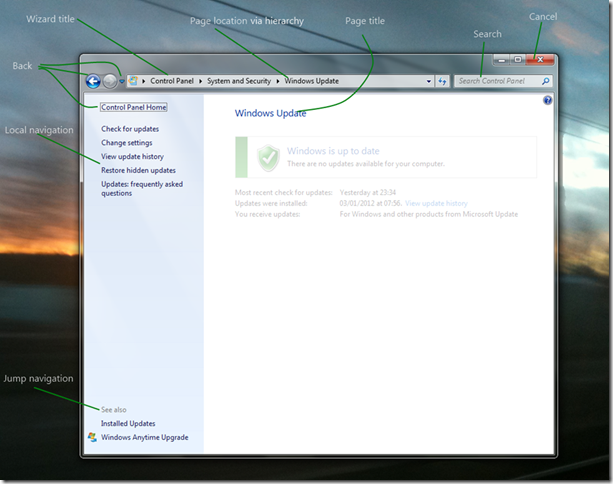
The only wizard feature thing that’s missing from this form of UI is the Next button, so we simply design our pages to accommodate that.

WPF Navigation Windows

So my plan for this series of posts is to take a simple System.Windows.NavigationWindow and turn it into a fully featured NavigationWindow as above. If you read the documentation it talks about Frames, Pages and PageFunctions and so far that doesn’t sound very much like a wizard. So my first post of this series is going to start with the simplest possible wizard.

I’m going to use the example of ordering a coffee as the business process this Wizard will support but initially our coffee shop will have a very small menu.

A simple WPF Wizard

Start by creating a new Visual Studio WPF Window (or a new WPF application if you aren’t adding this to an existing app).

Open MainWindow.xaml and change the opening and closing tags from Window to NavigationWindow.

<NavigationWindow x:Class="BlogWPFWizard.MainWindow" 
xmlns=http://schemas.microsoft.com/winfx/2006/xaml/presentation 
xmlns:x=http://schemas.microsoft.com/winfx/2006/xaml 
Title="MainWindow" Height="350" Width="525"> 
</NavigationWindow> 

Now open MainWindow.xaml.cs and change the base class from Window to NavigationWindow

/// <summary>
/// Interaction logic for MainWindow.xaml
/// </summary>
public partial class MainWindow : NavigationWindow 
{
       public MainWindow()
       {
           InitializeComponent();
       }
   }

Running this gives us the expected UI.
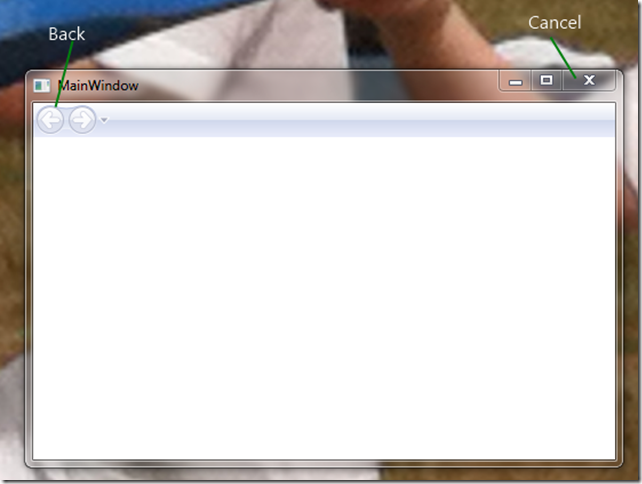
wiz3

Firstly, the Last Page

Now we need some content. I’m going to start on the last page first and work forwards simply so that I can demonstrate how this fits with MVVM as I go along. Right clicking on your Project in Visual Studio gives you a Add submenu where one item is Page. Clicking this and giving the name LastPage creates us a fairly blank looking canvas in the WPF design View. All I’ve done is dropped a couple of Buttons and some text into my page.

wiz4

And the xaml

<Page x:Class="BlogWPFWizard.LastPage" 
 xmlns=http://schemas.microsoft.com/winfx/2006/xaml/presentation
 xmlns:x=http://schemas.microsoft.com/winfx/2006/xaml
 xmlns:mc=http://schemas.openxmlformats.org/markup-compatibility/2006
 xmlns:d=http://schemas.microsoft.com/expression/blend/2008
 mc:Ignorable="d" d:DesignHeight="100" d:DesignWidth="300" 
 Title="LastPage">
 <Grid>
 <Button Content="Cancel" Height="23" HorizontalAlignment="Right" Margin="0,0,12,12"
 Name="button1" VerticalAlignment="Bottom" Width="75" />
 <Button Content="Fi_nish" Height="23" HorizontalAlignment="Right" Margin="0,0,93,12"
 Name="button2" VerticalAlignment="Bottom" Width="75" />
<TextBlock Height="23" HorizontalAlignment="Left" Margin="12,12,0,0" 
 Name="textBlock1" Text="Thanks for your order" VerticalAlignment="Top" />
 </Grid>
</Page> 

If you run this now you’ll get a blank UI, exactly the same as before. We need to tell the NavigationWindow to display the Page in its Frame.

Open MainWindow.xaml.cs and add the following to the constructor,

public MainWindow()
{
   InitializeComponent();
 Navigate(new LastPage());       
}

Now we get the expected UI, although the buttons don’t do anything (see the source code at the bottom of this post for the full implementation).
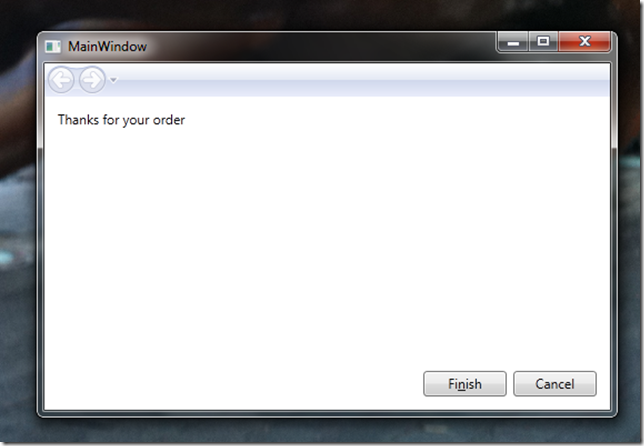
wiz5

MVVM and Pages

We can now add another new Page, lets call this one FirstPage. First pages job is simply to get our order. It can do all this because initially our shop only provides black coffee and only one at a time.
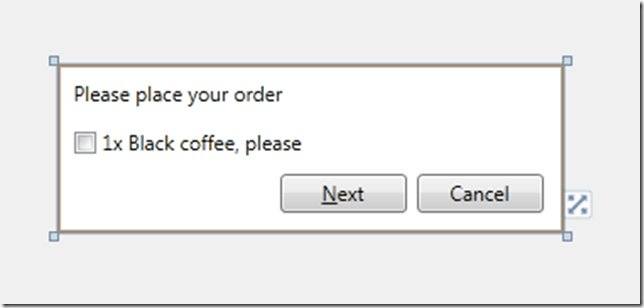
wiz6

Now we have some data here to store and so we also create a view model, in this case, I’ll create an OrderViewModel, and I’m going to include some logic to generate a simple order (again see the source code for the implementation of the Model classes).

class OrderViewModel
{
 public bool Wants1xBlackCoffee { get; set; }
 public Order Order { get; set; }

 public void GenerateOrder()
  {
    Order = new Order();

    if (Wants1xBlackCoffee)
    {
        Order.Drinks.Add(new BlackCoffee());
    }            
  }

We wire up the bindings in the View to the ViewModel as usual.

<Page x:Class="BlogWPFWizard.FirstPage" …
 Title="FirstPage">
 <Grid>
 <Button Content="Cancel" Margin="0,0,12,12" Name="button1" Height="23"
 VerticalAlignment="Bottom" HorizontalAlignment="Right" Width="75" />
 <Button Content="_Next" Height="23" HorizontalAlignment="Left" Margin="132,0,0,12" 
 Name="button2" VerticalAlignment="Bottom" Width="75" />
 <TextBlock Height="23" HorizontalAlignment="Left" Margin="10,10,0,0" 
 Name="textBlock1" Text="Please place your order" VerticalAlignment="Top" />
 <CheckBox Content="1x Black coffee, please" Margin="10,39,0,0" 
 VerticalAlignment="Top" HorizontalAlignment="Left"/>
 </Grid>
</Page>

As usual in an MVVM application we use the DataContext to link the View and the ViewModel so our new Startup logic can be

public MainWindow()
{
    InitializeComponent();

    Navigate(
        new FirstPage {
            DataContext = new OrderViewModel()
        });
}


What we haven’t done here is to protect against empty orders, i.e. an order with no drinks in it, because although it might be a perfectly logical thing to have an empty order, nobody is going to accept it. I’m choosing to intercept that only in the UI and basically I’m going to disable the Next button unless you order 1xBlack Coffee. We use Commands on the ViewModel to achieve this.

 public OrderViewModel()
   {
       GenerateOrderCommand = new RelayCommand(
           _ => GenerateOrder(),
           _ => IsValidOrder);
   }
  
   public bool IsValidOrder
   {
       get { return Wants1xBlackCoffee; }
   }

   public RelayCommand GenerateOrderCommand { get; set; }

So now in our ViewModel we have all the logic to generate an order. What we don’t have is any logic to handle moving between pages.

So where do we put our Navigation then?

In order to actually change pages, we simply need to call the NavigationService’s Navigate method. Unfortunately the NavigationService is a only available from the View tier, on NavigationWindows, or Page class derivatives.

So there is a very common pattern I find myself using. I declare the business logic in a ViewModel command such as above, and then declare the Navigation logic in a command declared in the View tier and which delegates down to the business logic command as well.

public FirstPage()
       {
           InitializeComponent();

           GoNextCommand = new RelayCommand(
               _ => GoNext(),
               _ => CanGoNext());
       }

       private bool CanGoNext()
       {
           var orderViewModel = DataContext as OrderViewModel;
           return orderViewModel.GenerateOrderCommand.CanExecute(null);
       }

       public void GoNext()
       {
           var orderViewModel = DataContext as OrderViewModel;
           if (orderViewModel != null)
           {
               orderViewModel.GenerateOrderCommand.Execute(null);
               NavigationService.Navigate(
                   new LastPage {
                       DataContext = this.DataContext
                   });
           }
       }

       public RelayCommand GoNextCommand { get; set; }

An example wizard

Putting it all together we now have an initial dialog that won’t take an order.
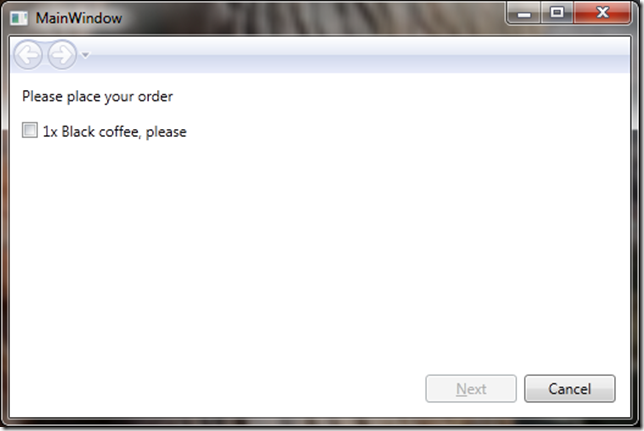
wiz7

Click the checkbox to take an order and enable Next
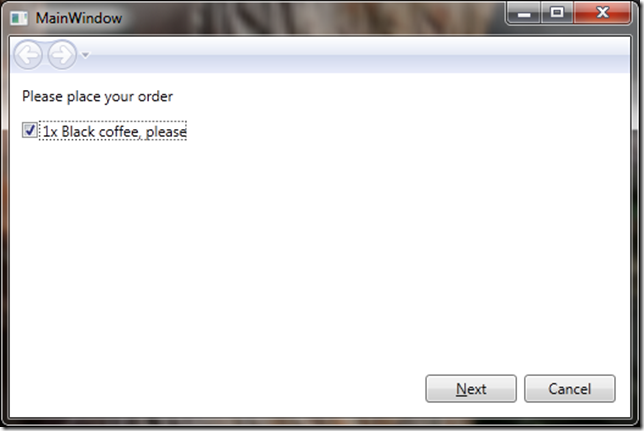
wiz8

And after hitting next you have an enabled back option

wiz9

Which takes you back to the valid state (i.e. still ticked)
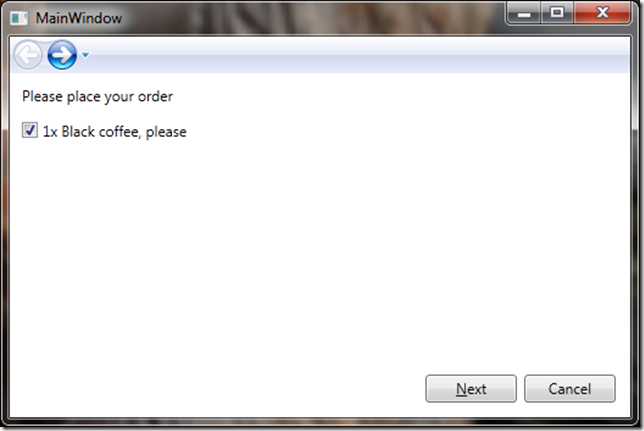
wiz10

More soon

This is now probably much longer than I originally intended my first post to be. My next post will look at improving the look of Wizard, incorporating glass into the UI, removing the forward button and drop down.

WPF Icon Overlays

Window code, note that we are binding the Overlay to the ImageSource property of the Counter.


<Window x:Class="IMAPChecker.MainWindow"
        xmlns="http://schemas.microsoft.com/winfx/2006/xaml/presentation"
        xmlns:x="http://schemas.microsoft.com/winfx/2006/xaml"
        xmlns:main="clr-namespace:IMAPChecker"
>
      <Window.TaskbarItemInfo>
        <TaskbarItemInfo 
            Overlay="{Binding ElementName=Counter, Path=ImageSource}" 
            />         
    </Window.TaskbarItemInfo>


    <Grid Margin="10">
       …
            <main:CountControl x:Name="Counter"  
                               DisplayCount="{Binding Path=Unseen}"                               
                               HasIssue="{Binding Path=HasError}"
                               IsChecking="{Binding Path=IsChecking}"
                               />

</Grid> </Window>

The counter control Xaml is mainly defining brushes.

<UserControl x:Class="IMAPChecker.CountControl"
             xmlns="http://schemas.microsoft.com/winfx/2006/xaml/presentation"
             xmlns:x="http://schemas.microsoft.com/winfx/2006/xaml"
             xmlns:mc="http://schemas.openxmlformats.org/markup-compatibility/2006" 
             xmlns:d="http://schemas.microsoft.com/expression/blend/2008" 
             xmlns:cc="clr-namespace:IMAPChecker"
             mc:Ignorable="d" Height="16" Width="16">

    <UserControl.Resources>
        <BooleanToVisibilityConverter x:Key="boolToVisibility"/>

        <RadialGradientBrush  x:Key="EmptyBrush"
                              GradientOrigin="0.5,0.1" Center="0.5,0" RadiusX="2" RadiusY="0.9" >
            <GradientStop Color="#a0ffffff" Offset="0" />
            <GradientStop Color="#40ffffff" Offset="0.6"/>
            <GradientStop Color="#40000000" Offset="0.7"/>
            <GradientStop Color="#00000000" Offset="1.25"/>
        </RadialGradientBrush>

        <RadialGradientBrush  x:Key="HighlightBrush"
                              GradientOrigin="0.5,0.1" Center="0.5,0" RadiusX="2" RadiusY="0.9" >
            <GradientStop Color="LightGreen" Offset="0" />
            <GradientStop Color="Green" Offset="0.6"/>
            <GradientStop Color="DarkGreen" Offset="0.7"/>
            <GradientStop Color="Green" Offset="1.25"/>
        </RadialGradientBrush>

        <RadialGradientBrush  x:Key="MutedBrush"
                              GradientOrigin="0.5,0.1" Center="0.5,0" RadiusX="2" RadiusY="0.9" >
            <GradientStop Color="LightYellow" Offset="0" />
            <GradientStop Color="CornflowerBlue" Offset="0.6"/>
            <GradientStop Color="Blue" Offset="0.7"/>
            <GradientStop Color="Gray" Offset="1.25"/>
        </RadialGradientBrush>

        <RadialGradientBrush  x:Key="CheckingBrush"
                              GradientOrigin="0.5,0.1" Center="0.5,0" RadiusX="2" RadiusY="0.9" >
            <GradientStop Color="LightYellow" Offset="0" />
            <GradientStop Color="Gold" Offset="0.6"/>
            <GradientStop Color="GoldenRod" Offset="0.7"/>
            <GradientStop Color="Gold" Offset="1.25"/>
        </RadialGradientBrush>

        <RadialGradientBrush  x:Key="IssueBrush"
                              GradientOrigin="0.5,0.1" Center="0.5,0" RadiusX="2" RadiusY="0.9" >
            <GradientStop Color="LightPink" Offset="0" />
            <GradientStop Color="Red" Offset="0.6"/>
            <GradientStop Color="DarkRed" Offset="0.7"/>
            <GradientStop Color="Red" Offset="1.25"/>
        </RadialGradientBrush>
    </UserControl.Resources>
    <Border BorderThickness="1" Name="ColourBorder"
        CornerRadius="5" 
        HorizontalAlignment="Stretch"
        VerticalAlignment="Stretch"
        Background="{StaticResource CheckingBrush}">

        <Viewbox HorizontalAlignment="Center">
            <TextBlock Name="TextBlock"
                    HorizontalAlignment="Stretch" VerticalAlignment="Center"
                    TextAlignment="Center" TextWrapping="NoWrap" 
                    Foreground="Gray" FontWeight="Bold"  
                    Text="{Binding RelativeSource={RelativeSource FindAncestor, AncestorType={x:Type cc:CountControl}}, Path=DisplayCount}"
                    />
            <!--Text="1"-->
        </Viewbox>

        <Border.BorderBrush>
            <LinearGradientBrush EndPoint="1,1" StartPoint="0,0">
                <GradientStop Color="LightGray" Offset="0" />
                <GradientStop Color="DarkSlateGray" Offset="1" />
            </LinearGradientBrush>
        </Border.BorderBrush>
    </Border>

</UserControl>

The fun begins in the code behind, first there is state logic mapping the state to brushes, which I could alternatively do via a Convertor but the logic seemed to be part of the control so made sense here

public partial class CountControl : UserControl
 {
     public CountControl()
     {
         InitializeComponent();
         InitializeBitmapGeneration();
         DisplayCount = 40;
     }

     public static readonly DependencyProperty DisplayCountProperty = DependencyProperty.Register(
         "DisplayCount",
         typeof(int),
         typeof(CountControl),
         new UIPropertyMetadata(0,
             (d, e) => ((CountControl)d)._OnDisplayChanged()));

     public static readonly DependencyProperty HasIssueProperty = DependencyProperty.Register(
      "HasIssue",
      typeof(bool),
      typeof(CountControl),
      new UIPropertyMetadata(false,
          (d, e) => ((CountControl)d)._OnDisplayChanged()));

     public static readonly DependencyProperty IsCheckingProperty = DependencyProperty.Register(
   "IsChecking",
   typeof(bool),
   typeof(CountControl),
   new UIPropertyMetadata(false,
       (d, e) => ((CountControl)d)._OnDisplayChanged()));

     public static readonly DependencyProperty HasVolumeProperty = DependencyProperty.Register(
   "HasVolume",
   typeof(bool),
   typeof(CountControl),
   new UIPropertyMetadata(false,
       (d, e) => ((CountControl)d)._OnDisplayChanged()));

     public int DisplayCount
     {
         get { return (int)GetValue(DisplayCountProperty); }
         set { SetValue(DisplayCountProperty, value); }
     }

     public bool HasIssue
     {
         get { return (bool)GetValue(HasIssueProperty); }
         set { SetValue(HasIssueProperty, value); }
     }

     public bool HasVolume
     {
         get { return (bool)GetValue(HasVolumeProperty); }
         set { SetValue(HasVolumeProperty, value); }
     }

     public bool IsChecking
     {
         get { return (bool)GetValue(IsCheckingProperty); }
         set { SetValue(IsCheckingProperty, value); }
     }

     private void _OnDisplayChanged()
     {
         ImageSource = null;
         if (IsChecking)
         {
             ColourBorder.Background = (Brush)Resources["CheckingBrush"];
             TextBlock.Foreground = Brushes.Black;
             return;
         }

         if (HasIssue)
         {
             ColourBorder.Background = (Brush)Resources["IssueBrush"];
             TextBlock.Foreground = Brushes.White;
             return;
         }

         if (HasVolume == false)
         {
             ColourBorder.Background = (Brush)Resources["MutedBrush"];
             TextBlock.Foreground = Brushes.Black;
             return;
         }

         if (DisplayCount == 0)
         {
             ColourBorder.Background = (Brush)Resources["EmptyBrush"];
             TextBlock.Foreground = Brushes.Black;
         }
         else
         {
             ColourBorder.Background = (Brush)Resources["HighlightBrush"];
             TextBlock.Foreground = Brushes.White;
         }


     }

And then we have the fun part where we convert the Control into an image.

   #region Should be in base class

        protected void InitializeBitmapGeneration()
        {
            LayoutUpdated += (sender, e) => _UpdateImageSource();
        }

        public static readonly DependencyProperty ImageSourceProperty = DependencyProperty.Register(
           "ImageSource",
           typeof(ImageSource),
           typeof(CountControl),
           new PropertyMetadata(null));

        /// <summary>
        /// Gets or sets the ImageSource property.  This dependency property 
        /// indicates ....
        /// </summary>
        public ImageSource ImageSource
        {
            get { return (ImageSource)GetValue(ImageSourceProperty); }
            set { SetValue(ImageSourceProperty, value); }
        }

        private void _UpdateImageSource()
        {
            if (ActualWidth == 0 || ActualHeight == 0)
            {
                return;
            }
            ImageSource = GenerateBitmapSource(this, 16, 16);
        }

        public static BitmapSource GenerateBitmapSource(ImageSource img)
        {
            return GenerateBitmapSource(img, img.Width, img.Height);
        }

        public static BitmapSource GenerateBitmapSource(ImageSource img, double renderWidth, double renderHeight)
        {
            var dv = new DrawingVisual();
            using (DrawingContext dc = dv.RenderOpen())
            {
                dc.DrawImage(img, new Rect(0, 0, renderWidth, renderHeight));
            }
            var bmp = new RenderTargetBitmap((int)renderWidth, (int)renderHeight, 96, 96, PixelFormats.Pbgra32);
            bmp.Render(dv);
            return bmp;
        }

        public static BitmapSource GenerateBitmapSource(Visual visual, double renderWidth, double renderHeight)
        {
            var bmp = new RenderTargetBitmap((int)renderWidth, (int)renderHeight, 96, 96, PixelFormats.Pbgra32);
            var dv = new DrawingVisual();
            using (DrawingContext dc = dv.RenderOpen())
            {
                dc.DrawRectangle(new VisualBrush(visual), null, new Rect(0, 0, renderWidth, renderHeight));
            }
            bmp.Render(dv);
            return bmp;
        }
        #endregion

    }
}

A good nights coding

Everybody has a personal standard. We all like to think it’s pretty good. but sometimes we do a piece of work and we feel that we excel way above those standards. Last night was one of those for me.

I was leaving work until 6:30, and my boss wanted to talk about adding some functionality to allow us to a UI that start/stops individual things, so that it could also start/stop many things. But the UI is currently tree based, so how could this be achieved…

Fortunately I’d based the UI to look very much like Windows Explorer/Control Panel and finally I had a reason to implement search, the box in the top right. This way I could search for a set of processes, and then start/stop all. Even better the UI was shared with a personal project I was working on that wanted context sensitive search too, so at 8pm I rolled my sleeves up, sat down, and everything just worked perfectly.

First I implemented something that was so close to ICommandSource, that when I came across it, it seemed a perfectly natural progression. Later I realised why ICommandSource exists but not all controls use it, so I dropped the interface and kept the intent. I was struggling to correctly watermark the search box until I came across DataTrigger and only one StackOverflow search to find out why it wasn’t working properly.

Suddenly I realised I’d taken a simple restyling of a NavigationWindow into a new control, I’d investigated and learned new features, I’d worked inside an MS framework, and had decided when was best to follow other standards that closely align but not slavishly dictate the framework where it was of no value. I’d even sorted out a nasty bug that I’ve been struggling with for days, just by glimpsing at it. I was on fire. I just need to make sure I can carry on like this to see if I can get my personal standard up even higher.

I’ll follow this up with some posts describing this UI control, but for now you can see my previous post on RedGreenRefactor to see an example of this.

RedGreenRefactor v0.1

I have some ideas about a tool to assist and support Red Green refactor cycles as you follow a TDD loop, and my first iteration towards that is now available. This is incredibly basic right now from where I intend to take it.

Usage

This is the basic process to use RedGreenRefactor right now.

Startup

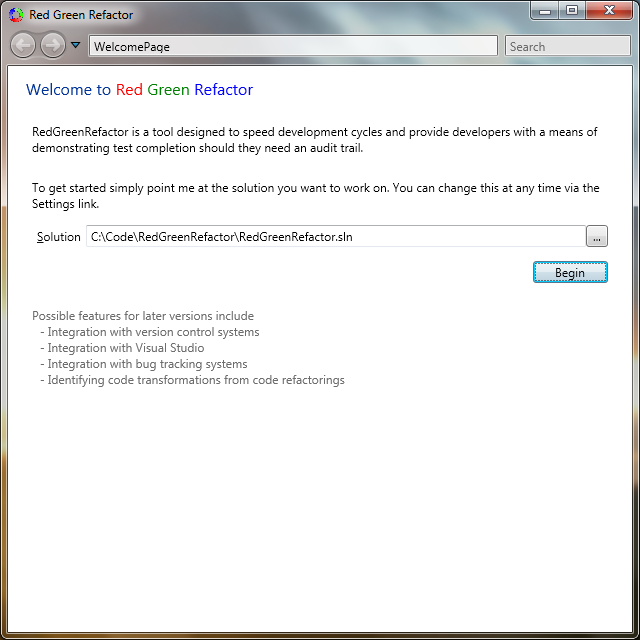
You need to select a Visual Studio solution to monitor. You can change to another at any time on the Settings page.  RedGreenRefactor will parse the projects (*.csproj) and find all those that use a test framework (only nBehave supported in this release)

rgr1

Define the intent of one or many test cycles

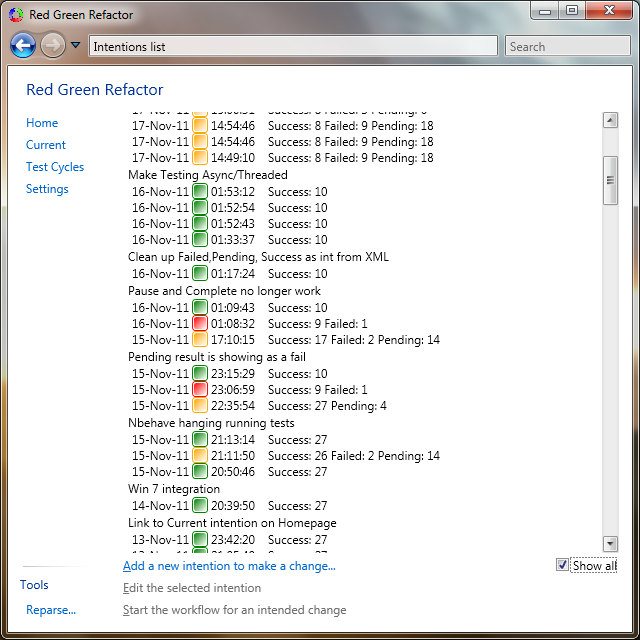
Now go to the test cycles list and add what you think you intend to change, and if you want to group them by release. Start to work on your first cycles.

rgr3

Working on an Intention

Start your TDD cycle, so in VS add a new test. Every time you recompile, RedGreenRefactor will run the tests automatically and record the results. Over time you build up a history of your changes.

rgr3

Home Page

Right now the Home Page tries to give you everything you need and is starting to show a small fragment of the reporting capabilities planned.

rgr4

Download

Download RedGreenRefactor.0.1.123.121.msi

What is the tool for?

Right now, RedGreenRefactor will automatically run your tests every time you re-compile or click Run Now. My original idea was to simply capture these and provide reports back on how you are doing.

I use RedGreenRefactor to help ensure I’ve followed my cycle through failing tests (including having Pending specification steps) and then into Green, and refactor. My plan is to get RedGreenRefactor to help with that and marking the difference between test development (i.e. Red stage) and functional development (i.e. Green and Refactor). However by collecting these test runs, I think many more useful reports can be made available, ranging from estimation assistance (length of time that changes were made including a set of keywords), productivity (number of tests), and personal contribution to coverage are just a few.

In addition I also think that simple things like better check in comments in your VCS of choice can be easily achieved if a tool knows what you have changed. In addition I recognise that there is a relationship between test cycles and bug fixes so integrate with tools such as JIRA may also be relevant.

Future functionality

  • Support more test frameworks e.g. nUnit, mbUnit
  • Detect refactorings and code transformations
  • Detect change to coverage levels
  • Support workflows (e.g. UI only changes may not generate a Red phase)
  • Generate reports
  • Integrate with version control (so we simplify the commit cycle)
  • Integrate with VS
  • Integrate with Bug Trackers

Transformation priority premise

Another of those posts that’s actually a bookmark for myself.

The Transformation Priority Premise by Uncle Bob Martin. http://cleancoder.posterous.com/the-transformation-priority-premise

This really has got me thinking at the moment, in fact I’m wondering if it might be worth doing in association with a “TDD as if you meant it” session (designed by Keith Braithwaite but described here). In this session we can walk the willing victim (I’ll never forget Keith being my conscience Smile) through the minimal TDD but at decribe this in terms of transformations. I think it would be really interesting to take feedback from an audience while the coder is headphoned, or even better working remotely, so they can’t hear what we are describing.

How to fail an interview while being totally accurate

aka Value types vs Reference types

Thanks Eric, I’m never going to get another job.

If you are employed in the C# world, then you’ve been through an interview process. I think I have a better chance of becoming a millionaire by betting everybody that has a C# job £10 that they were asked the difference between value types and reference types as an interview question, than by winning the lottery. It is one of the de-facto questions that you ask as an interviewer and expect to be asked as a candidate. The answer that people want to hear is simple,

Value types go on the stack, Reference types go on the heap.

Except that is wrong according to that man who knows. Don’t believe me, go read The Truth About Value Types.

The dilemma

So here’s the problem, do I tell people what they want to hear or what I now know is correct? Can I interrupt an interview and ask if they read Eric Lippert’s Fabulous adventures in coding, before I answer the next question?

I think from now on, I’m damned. Now I know the truth there is no way I can keep quiet, I’m not that kind of person. Then again, who likes being corrected in an interview?

Thanks Eric, I’m never going to pass another interview. Smile

WPF MeasureOverride and Desired Size

I’ve been struggling to get a custom layout working for an items control due to a large number of Double.Nan being exposed. Finally I found the answer in the MSDN docs (that’ll teach me).

http://msdn.microsoft.com/en-us/library/system.windows.frameworkelement.measureoverride.aspx

It appears there are three sizes for each WPF framework element.

Height, Width – As defined at design time

ActualHeight, ActualWidth – Where the sizes will end up once the calls to elem.Arrange(…) via ArrangeOverride of the Collection control have completed

and introducing..

DesiredSize.Height, Desized.Width – which is the value that was returned in each UIElements.MeasureOverride(…)

This means that for complex layouts you will need to calculate the entire appearance at Measure time, and then again and Arrange time.

LinqToSQL:Alternative to mocking the Db

One of the really nice things about LinqToSQL is how simple it makes it to produce a new database. It fact it’s so easy you can produce a real DB with less effort than a Mock’d one.

I’m sure this has to be bad in some way, but I’ve no idea what that is yet. I’ll need to try it out on a decent environment with a Build Server (like at home).

public const string UnitTestConnection = “Data Source=.;Initial Catalog=UnitTest;Integrated Security=True”;

MyDataContext context = new MyDataContext(UnitTestConnection);
if (context.DatabaseExists())
{
    context.DeleteDatabase();
}
context.CreateDatabase();
context.SubmitChanges();